
Last updated on June 29th, 2026 at 12:34 pm
Your laptop heats up, fans start spinning loudly, and suddenly everything slows down. This isn’t just annoying. It is your laptop’s cooling system struggling to keep up.
And if you ignore it long enough? That “minor inconvenience” quietly becomes a hardware problem that no software fix can solve.
Here’s the thing most people don’t realize: your laptop isn’t overheating because it’s old or cheap.
It’s overheating because something in the cooling chain has broken down, and once you understand how that chain works, fixing it (or preventing it entirely) becomes a whole lot simpler.
What Is a Laptop Cooling System?
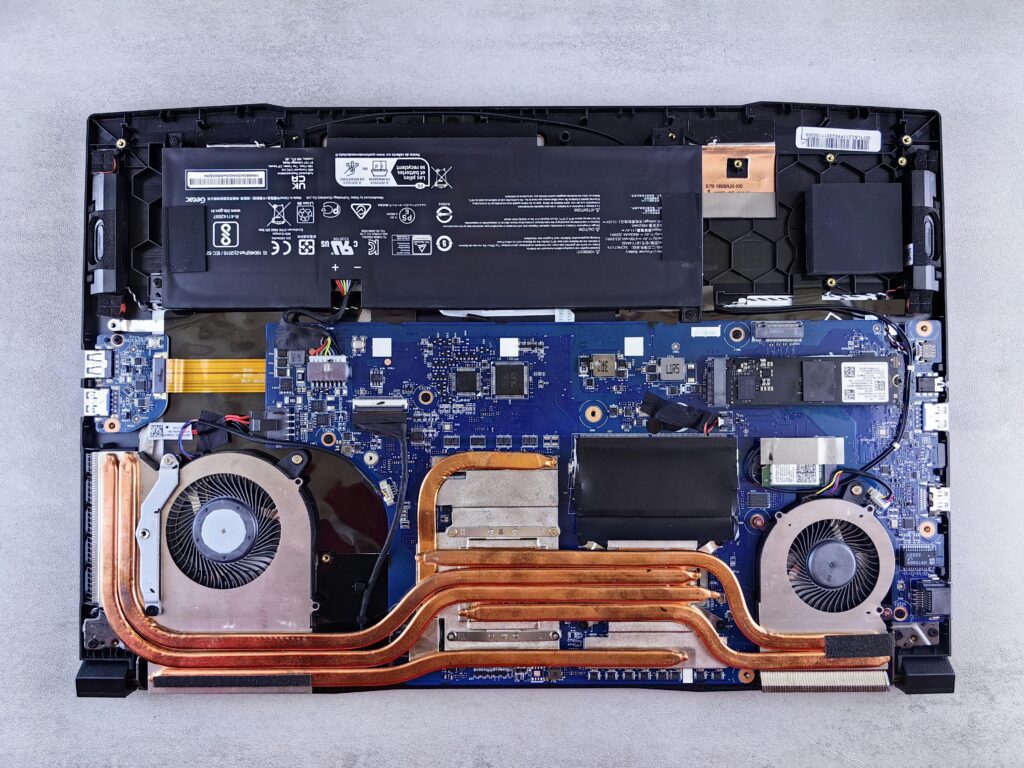
A laptop cooling system is a combination of fans, heat pipes, vents, and thermal materials that remove heat from internal components like the CPU and GPU to prevent overheating and performance loss.
Think of it as your laptop’s built-in survival mechanism. Every time you open a browser tab, run an application, or game for hours on end, your processor generates heat, and that heat needs somewhere to go.
The cooling system is what stands between your laptop running smoothly and it throttling itself into a sluggish mess just to stay alive.
It’s not one single component doing all the work. It’s a team effort, and when even one part of that team fails, the whole system feels it.
How Laptop Cooling Systems Work
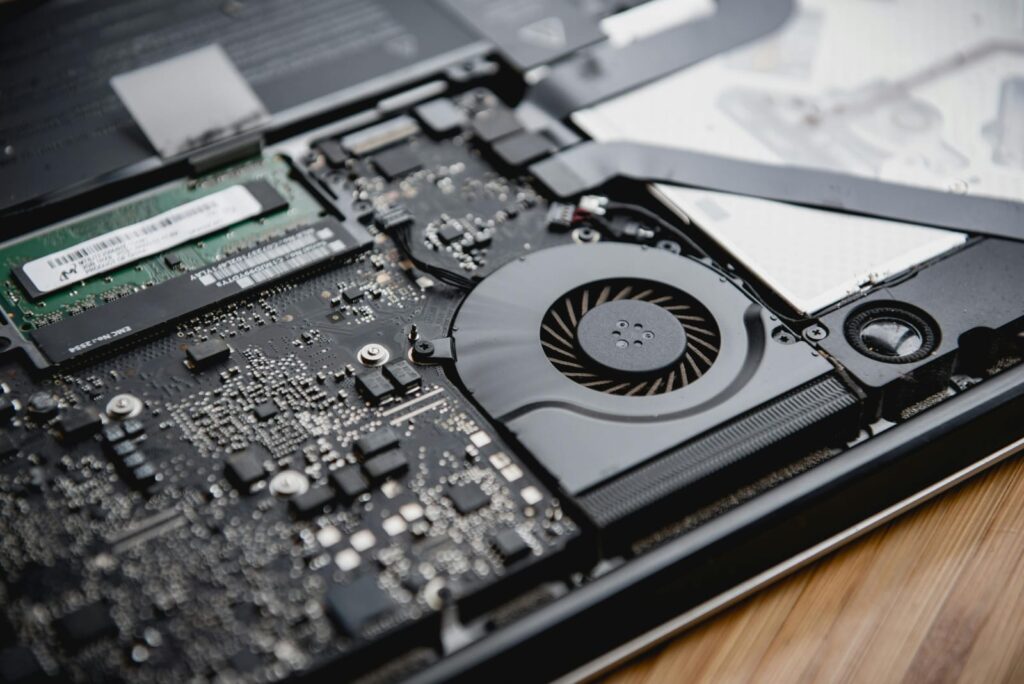
Your laptop’s cooling system isn’t magic; it’s engineering. Several components work in sync, each with a specific job. Here’s how they pull it off.
Air Cooling (Fans & Airflow)
This is the part you can actually hear. Cool air gets pulled in through intake vents, usually located on the bottom or sides of your laptop, and fans push the hot air out through exhaust vents. Rinse and repeat thousands of times a minute.
It sounds simple, and in principle it is. But the moment those vents get blocked by a pillow, a blanket, or two years’ worth of dust buildup, the entire airflow cycle breaks down. No fresh air in means no hot air out, and temperatures spike fast.
Heat Pipes & Vapor Chambers
This is where things get clever. Heat pipes are thin, sealed copper tubes filled with a small amount of liquid, usually water or a refrigerant.
When your CPU or GPU generates heat, that liquid absorbs it and evaporates, traveling through the pipe away from the heat source. It then cools down, condenses back into liquid, and flows back to do it all over again.
Vapor chambers work on the same principle but spread heat across a flat surface rather than a single tube, making them especially effective in thinner, high-performance laptops where space is tight. It’s a self-contained, silent, and surprisingly elegant system.
Thermal Paste
Here’s one that most people overlook, and it’s often the hidden culprit behind overheating in older laptops.
Your CPU and GPU generate heat on a metal surface called the heat spreader. The heat pipe or vapor chamber sits on top of it.
But here’s the problem: even two perfectly flat metal surfaces have microscopic gaps and imperfections between them. Air trapped in those gaps is a terrible heat conductor.
Thermal paste fills those gaps. It’s a thick, conductive compound that bridges the space between the chip and the cooling hardware, making heat transfer dramatically more efficient.
Over time, it dries out, cracks, and loses effectiveness, and when that happens, temperatures creep up even under normal workloads.
A fresh application of thermal paste can sometimes feel like giving your laptop a second life.
Why Laptops Overheat
Overheating rarely happens out of nowhere. There’s almost always a reason, and more often than not, it’s something completely preventable. Here are the most common culprits.
Dust Blocking the Vents
Dust is the silent killer of laptop cooling. Over time, it accumulates inside the vents, fans, and heat sink fins, forming a thick layer that chokes airflow. Your fans spin harder, work longer, and still can’t move enough air to keep temperatures in check.
If your laptop is more than a year old and has never been cleaned, dust is almost certainly part of the problem.
Related: How To Clean And Maintain A Laptop Like A Pro For Peak Performance?
Poor Airflow (Yes, Using It on a Bed Counts)
Laptops need breathing room. When you place your laptop on a bed, pillow, or your lap, the soft surface molds around the bottom and blocks the intake vents entirely.
The cooling system is now trying to pull in fresh air from a surface that won’t give it any.
It’s one of the most common causes of overheating and one of the easiest to fix: use a hard, flat surface. A simple laptop stand makes a bigger difference than most people expect.
Aging Thermal Paste
As mentioned earlier, thermal paste doesn’t last forever. On most laptops, it starts degrading somewhere between 3 and 5 years.
When it dries out, heat transfer between the chip and the cooling system becomes inefficient, and your temperatures reflect that.
If your laptop is a few years old and runs noticeably hotter than it used to, dried thermal paste is a very likely suspect.
Heavy Tasks (Gaming, Video Editing, Rendering)
Your CPU and GPU don’t generate the same amount of heat all the time. Browsing the web? Barely breaking a sweat.
Running an AAA game or exporting a 4K video? Now they’re pushed close to their limits, generating significantly more heat than the cooling system was designed to handle continuously.
This is why gaming laptops tend to get loud and hot fast. It’s not a flaw. It’s the hardware doing exactly what you asked it to do.
Related: How To Upgrade Your Gaming Laptop Without Breaking The Warranty?
Thin Laptop Design Limitations
Ultra-thin laptops look great. But there’s a real engineering trade-off happening inside that slim chassis.
Less physical space means smaller fans, shorter heat pipes, and less room for airflow. The cooling system is working with far tighter constraints than a bulkier machine.
This is why a thin-and-light laptop will thermal throttle under sustained load faster than a chunkier workstation-class machine. It’s not a defect. It’s physics. The design prioritized portability, and cooling capacity took a hit in return.
What Is Thermal Throttling?
You’re in the middle of a game, a render, or even just a video call, and suddenly everything feels sluggish.
The frame rate drops, the cursor drags, and your laptop feels like it aged ten years in ten seconds. Chances are, you just ran into thermal throttling.
So what’s actually happening?
When your CPU or GPU gets too hot, typically approaching its maximum safe temperature, it doesn’t just push through and hope for the best. Instead, it deliberately slows itself down.
It reduces its clock speed, processes fewer instructions per second, and in doing so, generates less heat. It’s the processor protecting itself from damage by sacrificing performance.
How to Fix Laptop Overheating
Most overheating problems are fixable. And you don’t need to be a technician to solve them. Here’s a tiered approach. Start with the easy wins and work your way up only if needed.
Easy Fixes (Start Here)
Clean Your Vents
Grab a can of compressed air and blast it through the vents, especially the exhaust. You’d be surprised how much dust comes flying out of a laptop that “looks clean” from the outside.
Do this every 3–6 months, and you’ll keep airflow consistently healthy. If compressed air isn’t available, even a soft brush can help dislodge buildup around the vent openings.
Use a Hard, Flat Surface
Put the laptop on a desk, a table, a hardcover book, or anything rigid. Stop using it on beds, sofas, and cushioned surfaces that smother the intake vents.
This one change alone has solved overheating problems for countless people who never even realized the surface was the issue.
Elevate the Laptop
Propping the rear of your laptop up by even an inch dramatically improves airflow underneath. You can use a dedicated laptop stand, a small wedge, or even a thick pen under the back edge.
A larger gap between the bottom of your laptop and the surface means more air reaches those intake vents.
Intermediate Fixes (If Easy Fixes Aren’t Enough)
Still running hot? Time to bring in a little extra help.
Get a Cooling Pad
A cooling pad sits under your laptop and uses its own fans to push additional cool air toward the bottom of the machine.
They’re inexpensive, widely available, and genuinely effective, especially for gaming laptops or anyone doing sustained heavy work.
Look for one that matches your laptop’s size and has intake vents positioned where your laptop’s vents actually are.
Use Fan Control Software
Most laptops manage fan speed automatically, but “automatic” doesn’t always mean “optimal.” Tools like MSI Afterburner, HWiNFO, SpeedFan, or your laptop manufacturer’s own utility (like Lenovo Vantage or ASUS Armoury Crate) let you manually ramp up fan speeds before temperatures get out of hand.
It gets louder. But loud and cool beats quiet and throttled every time.
Advanced Fixes (For the Confident and Committed)
These require a bit more effort, and in the case of thermal paste, opening up your laptop. But the results can be dramatic.
Replace the Thermal Paste
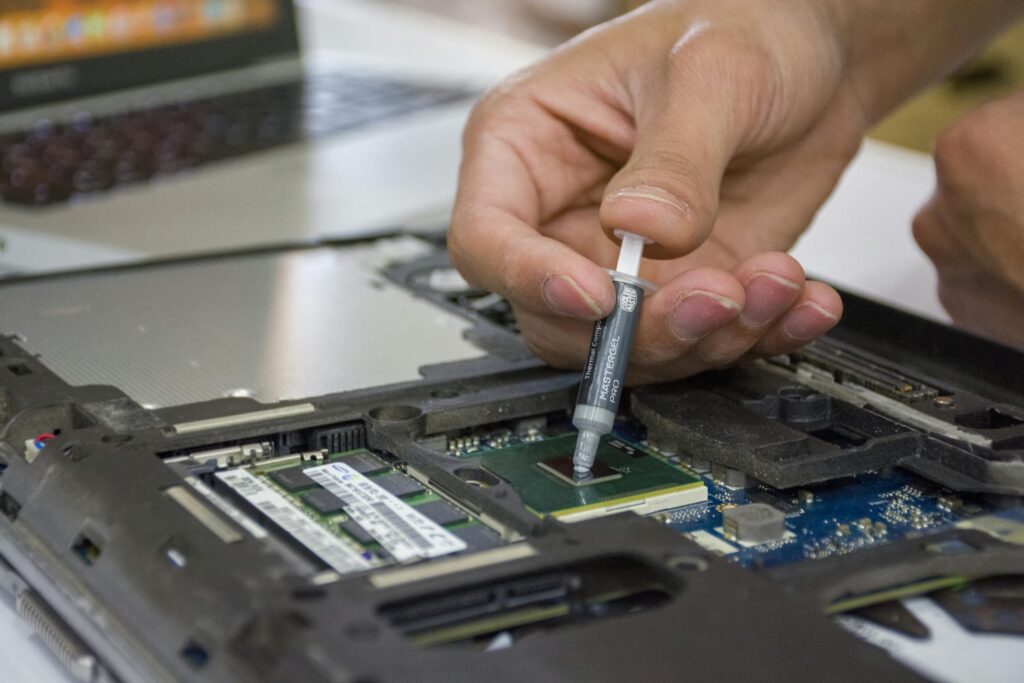
If your laptop is 3+ years old and runs consistently hot, this is probably the highest-impact fix available to you. The process involves opening the bottom panel, carefully removing the heatsink, cleaning off the old dried paste with isopropyl alcohol, and applying a fresh pea-sized drop of quality thermal paste. Brands like Thermal Grizzly Kryonaut or Arctic MX-6 are excellent choices.
Many people report temperature drops of 10–20°C after a repaste. That’s not a small improvement. That’s the difference between throttling and actually using your hardware the way it was intended.
Undervolting
This one is for the technically curious. Undervolting means reducing the voltage supplied to your CPU slightly below its default setting.
Less voltage means less heat generated, without any meaningful drop in performance. Tools like ThrottleStop (Windows) or Intel XTU make this accessible even for beginners.
Done right, undervolting is completely safe and can shave 5–15°C off your CPU temperatures under load. It’s one of the best-kept secrets in laptop optimization, and it costs absolutely nothing.
Pro Tips to Keep Your Laptop Running Cool
The fixes in the previous section solve overheating problems. These tips prevent them from coming back. Small habits, big differences.
Don’t Block the Side Vents
Most people know not to cover the bottom vents, but the sides get forgotten. Many laptops exhaust hot air through vents on the left or right edges, and if those are pressed up against a wall, a book, or the side of a tight desk setup, that hot air has nowhere to go. It just gets recycled back in.
Give your laptop a few inches of clearance on all sides. It sounds minor until you check your temperatures before and after.
Avoid Gaming on Battery
When your laptop is unplugged, it often shifts into a power-saving mode that actually interferes with cooling.
The fans may run slower, the hardware underperforms, and yet the heat generated is still very real. You end up with the worst of both worlds: reduced performance and higher temperatures.
For any sustained heavy workload, gaming, editing, or rendering, keep it plugged in. Your cooling system will thank you.
Keep Your Room Temperature in Check
This one gets overlooked almost entirely. Your laptop’s cooling system works by transferring heat into the surrounding air.
If that surrounding air is already 35°C on a hot summer afternoon, the system has far less headroom to work with before temperatures get critical.
A cooler room means a cooler laptop; it’s that straightforward. Air conditioning, a desk fan blowing nearby, or even just moving to a cooler spot in the house can meaningfully bring temperatures down without touching the laptop itself.
Frequently Asked Questions
Why does my laptop overheat even with a fan running?
A spinning fan doesn’t always mean effective cooling. If the vents are clogged with dust, the thermal paste has dried out, or airflow is being blocked by the surface underneath, the fan is working hard but moving very little.
Is a cooling pad really effective?
Yes, but it’s not a miracle cure. A cooling pad works best as a supportive measure alongside good airflow habits and clean vents. On its own, it can drop temperatures by 5–10°C, which is meaningful. Treat it as a complement to proper maintenance, not a replacement for it.
How often should I clean my laptop fan?
Every 3–6 months is a solid rule of thumb for most users. If you use your laptop in dusty environments, own pets, or keep it on soft surfaces regularly, lean toward it every 3 months.
Can overheating permanently damage my laptop?
It can, but modern laptops are designed to protect themselves before that happens through thermal throttling and automatic shutdown.
Final Thoughts
Laptop overheating isn’t something you should just learn to live with, and it’s definitely not something to ignore until the hardware gives out.
By now, you understand what’s actually happening inside your machine when temperatures climb. You know how the cooling system works, why it sometimes struggles, and most importantly, what you can do about it.
Whether it’s something as simple as moving your laptop off the bed or something as involved as replacing the thermal paste, every fix you apply is directly extending the life and performance of your machine.
A cool laptop isn’t just a comfortable laptop. It’s a faster, longer-lasting, and more reliable one. Take care of your cooling system, and it’ll take care of everything else.
More Articles
Gaming Laptop Vs Ultrabook – Which One Is Right For You?
What Makes a Laptop Really Fast? – CPU, GPU, RAM, or Storage
Don’t Buy a Laptop Until You Read This (Intel vs AMD Truth)
SSD vs HDD Laptops: Speed, Price & Real-World Comparison

Kanha is a electronics engineer, tech enthusiast, and writer at technicalstudies.in. His experience in tech, coupled with excellent writing skills, makes the text easy to understand and helps the reader make the correct decision. Outside of writing, Kanha is passionate about exploring new gadgets and gaming.