
Choose a type below, enter the details, style the code, and download it as PNG, SVG or JPG. Codes are generated inside your browser and carry your content directly, so they never expire, have no scan limits and add no watermark.
Quick start
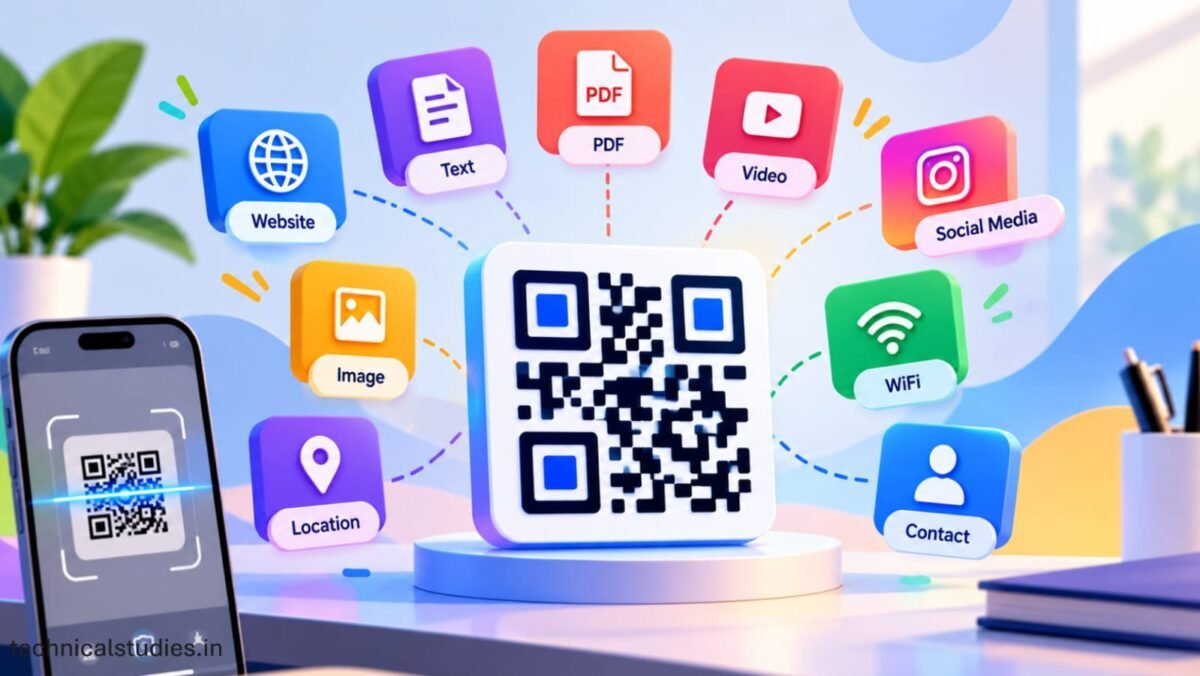
- Pick a type. Website for a link, Wi-Fi for a network, Contact card for a business card, WhatsApp for chat orders, and so on.
- Enter the details. The preview updates as you type. The download buttons unlock once there is something to encode.
- Style it, then download. Use PNG for screens and documents, SVG for print and signage, JPG when an upload form rejects PNG.
- Scan it with your phone before you print or publish. This takes ten seconds and catches typos.
PDF, Image and Video codes work from a public link to your file. The guide below the tool shows how to get that link from Google Drive or Dropbox.
Create a QR code for a link, Wi-Fi, contact, social profile and more. Free, no sign-up, and nothing leaves your browser.
Content
Design
Logo
Fill in the details to enable downloads.
Error correction: H (30%), so codes still scan with a logo or small damage.
Found this tool useful? Explore more free tools such as EMI calculator for gadgets, Photo & Signature Resizer, and so on.
What to enter for each QR code type
Website, text and social media
Website: paste the full address starting with https://. Without it, some phones treat the code as plain text. Shorter links make simpler codes that scan faster. If you want to measure scans, add a tag such as ?utm_source=qr&utm_medium=flyer to the end of the link and watch that source in Google Analytics. Because these codes are static, a tag like this is the only way to count scans.
Text: anything you type is shown to the person who scans. About 1,200 characters is the technical limit, but keep it under 300 so the code stays easy to scan.
Social media: choose the platform, then type your username (with or without @) or paste the full profile link. The username must match exactly. For a LinkedIn profile with a custom address, pasting the full link is safer.
Email, phone, SMS and WhatsApp
Email opens a new draft with the address, subject and message already filled in. Phone opens the dialer, so include the country code with a plus sign, for example +91 98765 43210. SMS opens a text to that number with your message ready to send.
WhatsApp needs the number with country code and no leading zeros, for example 919876543210. Add a first message such as “Hi, I’d like to order the lunch combo” so customers only tap send.
Wi-Fi, contact card and location
Wi-Fi: type the network name exactly as it appears on phones, including capital letters. Set Security to match your router. WPA covers WPA, WPA2 and WPA3 networks.
Choose No password for open networks, and choose Hidden network only if your router does not broadcast its name. The password sits inside the code in readable form, so only print it where you are happy for anyone who can see it to join.
Contact card: scanning offers to save the name, phone, email, company and website as a new contact. Fill in only what you want to share.
Location: enter latitude and longitude as decimals in separate boxes. In Google Maps, right-click the exact spot and click the numbers at the top of the menu to copy them. The first number is latitude, the second is longitude.
How to make QR codes for PDF, image and video files
This tool does not upload files. A QR code can only hold text, so for a PDF, image or video you first put the file online, copy its public link, and paste that link into the matching tab. Anyone can do this from a local file on their computer in a couple of minutes.
Using Google Drive
- Upload the file to Google Drive.
- Right-click the file and choose Share. Under General access, select Anyone with the link and keep the role as Viewer.
- Click Copy link and paste it into the PDF, Image or Video tab above.
- Open the finished QR code on a phone that is not signed in to your Google account. If you see “Request access”, sharing is still restricted.
A normal Drive link opens a preview page. To make the file download as soon as it is scanned, change the link from https://drive.google.com/file/d/FILE_ID/view to https://drive.google.com/uc?export=download&id=FILE_ID, keeping your own file ID. Very large files may show a Google virus-scan warning first.
Using Dropbox
- Upload the file to Dropbox.
- Click Share, then Create link. In link settings, choose Anyone with the link can view.
- Copy the link and paste it into the tool.
Dropbox links end with dl=0, which opens a preview page. Change it to dl=1 to force a download, or to raw=1 to display the image or PDF itself without Dropbox’s page around it. For images, raw=1 is usually the cleanest result.
Choosing the right link for each file type
- PDF: menus, brochures, manuals and certificates. A preview link lets people read without downloading. Use the download version for forms they will fill in.
- Image: posters, photos, floor plans. Use the raw or direct version if you want the image to fill the screen.
- Video: a YouTube or Vimeo link plays more smoothly on phones than a video stored in Drive or Dropbox. Upload as Unlisted on YouTube if you do not want it public. A short youtu.be link also makes a lighter code.
- Several files: share a whole folder instead and use the folder link. One code then covers every file inside it.
Keeping the code working after you print it
The code stores only the link. If you delete the file, move it or switch off sharing, scans will fail, and a printed code cannot be edited.
To update a file without changing its link, use Manage versions in Google Drive and upload the new version there.
In Dropbox, upload the new file with the same name into the same folder. Check the link afterwards, because Drive uploads as a new file and creates a new link.
Making a code that scans every time
- Contrast: use a dark code on a light background. Light-on-dark and low-contrast pairs fail on many scanners.
- Logo size: the code always uses H error correction, which can recover from about 30% damage, but a logo covers the centre. Keep it at 30% or less, and around 20% for long links.
- Shapes: square patterns scan fastest on older phones and cheap scanners. Dots and rounded styles look good but need more size, and thin Classy styles can blur in small print.
- Print size: allow at least 2 cm (0.8 in) per side for close scanning. For a poster, divide the scanning distance by ten. A code scanned from 2 metres should be about 20 cm wide.
- Margin: keep at least 10 px of blank space around the code, especially when it sits on a busy photo.
- File format: download SVG for anything printed large because it stays sharp at any size. PNG at 1000 px or more works for most other uses.
- Dense code? Shorten the link, drop the email subject and message, or raise the size slider.
Practical ways to use these codes
- Restaurant or cafe: link the menu PDF from Drive on table cards, and add a Wi-Fi code beside it.
- Guest rooms and offices: a Wi-Fi code on the wall saves people from typing a long password.
- Business cards: a Contact card code saves your details in one scan.
- Event flyers: a Website code with a tracking tag shows how many people came from print.
- Property listings: put a YouTube walkthrough on the For Sale sign.
- Product packaging: link the user manual PDF so it is always the latest version.
- Classrooms: share a Drive folder of handouts through one code on the board.
- Small shops: a WhatsApp code with a preset message turns a poster into an order line.
Frequently asked questions
Is this really free, with no limits?
Yes. There is no sign-up, watermark, scan limit or expiry date. The code holds your content itself, so it keeps working without any account.
Can I change the destination after printing?
No, because the destination is built into the pattern. Plan ahead by pointing the code to something you can update later, such as a page on your own site or a Drive file replaced through Manage versions.
Can I see how many people scanned it?
Not inside this tool. Add a tag like ?utm_source=qr to a website link and check the source in your analytics.
What is the difference between PNG, SVG and JPG?
PNG is a sharp image at the pixel size you chose. SVG is vector, so it never blurs when enlarged. JPG is smaller but slightly softer, and is best for forms that only accept it.
My Drive or Dropbox link asks people to sign in. What went wrong?
Sharing is set to restricted. Change access to Anyone with the link and test in a private browser window.
Do people need an app to scan?
No. The camera app on current iPhones and most Android phones reads QR codes directly.
Is my Wi-Fi password or other data stored?
No. Everything is generated in your browser and nothing is sent to or saved on a server. Keep in mind that the password is readable by anyone who scans the printed code.