

Last updated on August 16th, 2026 at 03:11 pm
Buying a laptop in 2026 is harder than it looks. Walk into any store or open any e-commerce site and you’re immediately hit with a wall of specs, brand names, and “limited time deals” that make it nearly impossible to think clearly.
Most people end up either overspending on features they’ll never use or underspending and regretting it six months later.
The most common mistakes? Chasing a brand name over actual performance, ignoring battery life until it’s too late, and buying a laptop based on looks rather than what’s under the hood.
This guide is for Indian students picking their first serious machine, working professionals tired of a laptop that slows down by 11 AM, and anyone who’s ever Googled “which laptop should I buy” and closed the tab more confused than when they started.
By the time you finish reading, you’ll know exactly which processor suits your workload, how much RAM you actually need, why storage type matters more than storage size, and how to match a laptop to your budget without compromise.
This is a clear, practical framework to help you buy smart. Let’s get started.
Quick Laptop Buying Checklist
Before you read another spec sheet, answer these five questions honestly. Your answers will eliminate 80% of the options out there — and that’s a good thing.
What will you primarily use it for? Browsing and assignments need very different hardware than video editing or running trading terminals.
What’s your real budget? Not the “I wish” budget, the actual number you’re comfortable spending today. In India, the sweet spots are ₹35K–₹60K for students and ₹60K–₹90K for professionals.
How often will you carry it? If you’re commuting daily, a 2.5 kg laptop will feel like a punishment by week two.
Does battery life make or break your day? If you’re constantly between classrooms or client meetings, anything under 8 hours real-world backup isn’t good enough.
Will you game or edit content? If yes, a dedicated GPU isn’t optional; it’s the entire conversation.
Keep your answers handy. I built this guide around them.
The Ultimate Laptop Buying Guide – Step-by-Step
Step 1: Identify Your Primary Use Case
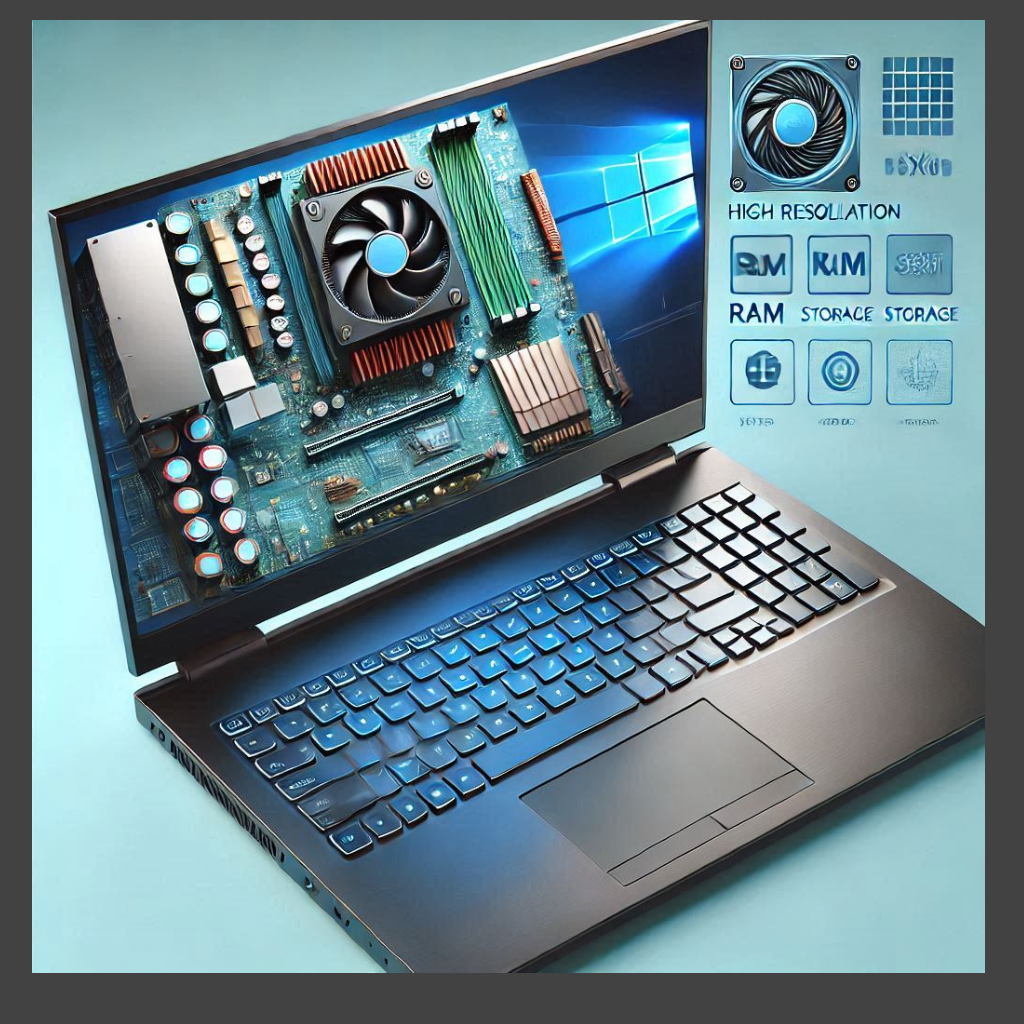
There’s no single “best laptop” for everyone. There’s only the best laptop for what you do. Two people can buy the same machine and have completely opposite experiences based on how they use it. So before looking at any spec, nail down your use case first.
🎓 Laptops for Students
If your day involves Google Meet lectures, submitting assignments, and occasional Netflix, you don’t need a powerhouse; you need something reliable, light, and long-lasting.
For general students, an Intel Core i5 (12th gen or above) or AMD Ryzen 5 with 8GB RAM and a 512GB SSD covers everything comfortably.
Battery life matters more than raw speed here because you’re not always near a socket in a classroom or library.
Coding students need to think differently. Running VS Code, a local server, and a browser with 15 tabs open simultaneously demands at least 16GB RAM.
An AMD Ryzen 5 or Intel Core i5 H-series (the H means higher performance) handles this well without burning a hole in your pocket.
Meanwhile, you can check my list of the best laptops for students and pick the right one from there.
💼 Laptops for Office Professionals
Office work sounds simple until you’re on a Zoom call, running Excel, and waiting for a PDF to export. Multitasking is the real test here.
For most professionals, 16GB RAM is the new baseline. An Intel Core i5 or i7 (U-series for thin and light, H-series if you need more muscle) paired with a 512GB SSD keeps things snappy throughout the day.
If your work involves frequent video calls, prioritize display quality and a decent webcam.
Remote workers should also pay close attention to port selection. An HDMI port, USB-A, and USB-C with charging support saves you from carrying a dongle everywhere.
I have a list of the best laptops for productivity and multitasking. You can check that if anything fits your requirements.
👨💻 Laptops for Programmers and Developers
Developers are probably the most demanding everyday users, and no, you don’t need a MacBook Pro to write good code (though it helps).
If you’re running Docker containers, virtual machines, or Android emulators, 16GB RAM is the floor, not the ceiling. Many developers working on heavier stacks prefer 32GB.
Storage speed matters too. Your build times on an NVMe SSD versus a regular SATA SSD are noticeably different.
For Linux users, AMD Ryzen processors have excellent open-source driver support. For those sticking with Windows, the Intel Core i7 H-series delivers consistent performance across long coding sessions.
🎬 Laptops for Content Creators
Video editing, graphic design, and photo editing are GPU and RAM-hungry. A dedicated GPU, even an NVIDIA RTX 3050, makes a significant difference when rendering timelines in Premiere Pro or exporting projects in DaVinci Resolve.
Equally important is the display. Aim for at least a 1080p IPS panel with sRGB colour accuracy above 95%. If you’re colour grading professionally, look for displays covering the DCI-P3 colour space. Editing on a poor display means your work looks different on every other screen.
16GB RAM is workable, but 32GB is where creative workflows stop stuttering.
🎮 Laptops for Gamers
Gaming laptops live and die by the GPU. An NVIDIA RTX 4060 is currently the sweet spot for 1080p gaming in India. It handles modern AAA titles well without pushing you into the ₹1.5L+ territory.
Display refresh rate matters as much as the GPU. A 144Hz panel is the minimum for a smooth gaming experience. Response time under 5ms prevents that blurry ghosting effect during fast-paced games.
One thing most buyers overlook: cooling. A powerful GPU crammed into a thin chassis will throttle, which means it slows itself down to avoid overheating. Check thermal reviews, not just benchmark scores, before buying a gaming laptop.
You can find the perfect pick for you in the best gaming laptops for every budget article.
Step 2: Understand Laptop Processors (CPU)
The processor is the brain of your laptop. It determines how fast applications open, how smoothly you can multitask, and whether your machine stays relevant three years from now. Every other spec decision flows from this one.
Intel Processor Guide
Core i3: Handles basic tasks like browsing, documents, and video calls. Fine for light student use, but struggles with anything heavier.
Core i5: The sweet spot for most users. Smooth multitasking, handles coding, office work, and casual content consumption without breaking a sweat.
Core i7: Built for demanding workloads. Video editing, heavy development environments, and serious multitasking are where the i7 earns its price.
Core i9: Overkill for most people. Makes sense only for professional creators or power users who push their machine all day.
Core Ultra Series: Intel’s latest architecture, built for AI-assisted tasks and improved power efficiency. Worth considering if you’re buying in 2026 and want a future-ready machine.
AMD Processor Guide
Ryzen 3: Similar to Core i3. Decent for everyday tasks, but headroom is limited.
Ryzen 5: AMD’s strongest value play. Competes directly with Core i5 and often wins on performance-per-rupee.
Ryzen 7: Excellent for developers, creators, and multitaskers. Often outperforms similarly priced Intel options in multi-core tasks.
Ryzen 9: AMD’s top-tier. Exceptional performance for workstation-level tasks.
Which Processor Should You Choose?
For students and office users, Ryzen 5 or Core i5 is good. For developers and creators, Ryzen 7 or Core i7 is preferred. For heavy workloads, Ryzen 9 or Core i9 is the right choice.
Still unsure whether to pick Intel or AMD? I’ve broken down the full comparison, explaining performance benchmarks, battery efficiency, value for money, and which one wins for specific use cases in this detailed Intel vs AMD Laptop Processor Guide.
Step 3: How Much RAM Do You Need?
RAM is where most buyers either over-save or overthink. Here’s a straightforward breakdown.
8GB RAM is the minimum, not the standard. It works for basic browsing, documents, and video calls, but open 10 Chrome tabs alongside Zoom, and you’ll feel the slowdown. In 2026, 8GB is acceptable only if you’re on a tight budget and your workload is genuinely light.
16GB RAM is the right call for most Indian students and professionals. It handles coding environments, multiple browser tabs, Excel sheets, and video calls simultaneously without choking. If you’re buying a laptop today and plan to use it for 3–4 years, 16GB is your baseline.
32GB and above makes sense for video editors rendering long timelines, developers running virtual machines, or anyone using memory-intensive software daily. It’s not a luxury at this level; it’s a requirement.
Upgradable RAM matters more than people realise. Some laptops solder the RAM directly onto the motherboard, meaning what you buy is what you’re stuck with forever. Always check whether your shortlisted model allows RAM expansion. It can extend your laptop’s useful life by years.
Want a deeper breakdown? Read our full guide on How Much RAM Do You Actually Need.
Step 4: Choosing the Right Storage
Storage choice directly impacts how fast your laptop feels.
SSD vs HDD: Avoid HDD entirely in 2026. Hard disk drives are slow, fragile, and drain battery faster.
An SSD makes your laptop boot in seconds, open applications instantly, and survive the occasional bag drop. There is no scenario where an HDD makes sense in a new laptop purchase today.
SATA SSD vs NVMe SSD: Both are SSDs, but NVMe is significantly faster. SATA SSDs are fine for everyday use, but if you’re a developer, video editor, or work with large files regularly, NVMe speeds are noticeably better for read/write performance.
How much storage do you need?
- 256GB: Manageable only if you rely heavily on cloud storage
- 512GB: The practical sweet spot for most users
- 1TB: Ideal for creators, developers, and anyone storing large project files
- 2TB+: For professionals with serious local storage demands
Always prioritise a laptop with an extra M.2 slot so you can expand storage later without replacing anything.
Want the full breakdown? Read our detailed SSD vs HDD guide.
Step 5: Display Buying Guide
You’ll stare at this screen for hours every day. It deserves more attention than most buyers give it.
Screen Size Options
13-inch: Ultra-portable, fits in any bag, but cramped for long working sessions. Best for frequent travellers with a secondary monitor at home.
14-inch: The sweet spot. Portable enough to carry daily, large enough to work comfortably without an external display. Most popular size among Indian students and professionals for good reason.
15.6-inch: Better screen real estate for creators and developers, but noticeably heavier. Works well if your laptop mostly sits on a desk.
16-inch and above: Primarily for creators and gamers who prioritise screen space over portability.
Full HD vs QHD vs 4K
Full HD (1920×1080) is perfectly sharp on screens up to 15.6 inches. Don’t pay a premium for QHD or 4K unless you’re doing professional colour work.
QHD (2560×1440) is genuinely useful on 14–16-inch screens. Noticeably crisper text, better for long reading and design work.
4K on a laptop screen is largely overkill and punishes battery life significantly.
IPS vs OLED
IPS panels offer accurate colours, wide viewing angles, and consistent brightness, so they are reliable for everyday use and professional work.
OLED displays deliver richer contrast and more vibrant colours, but carry a burn-in risk over time and cost more. Great for media consumption; worth it for creators who need visual accuracy.
Related: Are OLED laptops Worth It For Productivity And Gaming?
Refresh Rate
60Hz is acceptable for office and student use. 120Hz makes everyday scrolling and multitasking visibly smoother. 144Hz and above is for gaming. Don’t pay extra for it if you’re not gaming.
Matte vs Glossy
Working near windows or under office lighting? A matte display eliminates reflections and reduces eye strain significantly. Glossy screens look vibrant indoors but become mirrors the moment sunlight hits them.
Step 6: Battery Life Explained
A laptop with poor battery life isn’t a laptop; it’s a desktop with extra steps.
What Impacts Battery Life?
The display is the biggest drain, followed by the processor and GPU. A high-refresh-rate screen, a dedicated graphics card running constantly, and peak brightness together can cut your battery life in half. Background apps, Bluetooth, and Wi-Fi add to the drain steadily.
Battery Capacity (Wh) Explained
Wh (watt-hours) measures how much energy a battery stores. Higher Wh generally means longer life, but processor efficiency matters equally. A 72Wh battery on an AMD Ryzen 5 will outlast a 72Wh battery on a power-hungry H-series chip. Don’t judge by Wh alone.
- Under 45Wh: Expect 5–6 hours. Not ideal for all-day use.
- 50–60Wh: Decent. Around 7–8 hours with moderate use.
- 70Wh and above: The target zone. Real-world 9–12 hours is achievable.
Fast Charging
Look for laptops supporting 65W USB-C charging at minimum. Some laptops offer 0–50% in 30 minutes, which is genuinely useful when you’re rushing between classes or meetings. Avoid proprietary barrel chargers if portability matters.
Step 7: Graphics Card Guide
Most buyers either overpay for a GPU they don’t need or underbuy and regret it later. Here’s how to think about it clearly.
Integrated Graphics
Integrated graphics share memory with your RAM and are built directly into the processor.
Intel Iris Xe and AMD Radeon integrated graphics handle everyday tasks like browsing, documents, video calls, and even 1080p video playback without any issues. They’re also why thin laptops last longer on battery.
Dedicated Graphics
A dedicated GPU has its own processor and dedicated video memory (VRAM), completely separate from your RAM. This makes a measurable difference in video editing, 3D rendering, gaming, and running machine learning models locally.
Who Actually Needs a Dedicated GPU?
- Gamers — Non-negotiable
- Video editors — Significantly faster export and preview rendering
- Graphic designers using 3D tools — Yes
- Developers working with ML/AI models — Highly recommended
- Students, office professionals, writers — Integrated graphics is completely sufficient
NVIDIA RTX vs Integrated Graphics
The NVIDIA RTX 4050 and RTX 4060 are currently the most practical dedicated GPUs in the Indian mid-range market.
The RTX 4060 handles 1080p gaming and creative workloads comfortably. For most non-gaming use cases, integrated graphics on a Ryzen 7 or Core Ultra chip performs surprisingly well.
For a deeper comparison across GPU tiers and specific use cases, check our detailed Laptop GPU Buying Guide.
Step 8: Laptop Build Quality and Design
Specs get the attention, but build quality determines whether your laptop survives three years of daily use.
Plastic vs Metal Chassis
Plastic laptops are lighter and cheaper to manufacture, but flex under pressure and show wear faster.
Metal chassis, aluminium being the most common, feel more rigid, dissipate heat better, and hold up significantly longer. If you’re spending above ₹60,000, a metal build should be expected, not a bonus.
Weight and Portability
Under 1.5kg is genuinely ultraportable and ideal for daily commuters. 1.5–2kg is the practical middle ground, which is manageable for most users. Above 2.2kg is when the laptop stays on the desk more than in the bag.
Durability Considerations
MIL-STD-810G or 810H certification means the laptop has been tested against drops, temperature changes, and vibration. It’s not invincibility, but it’s a meaningful indicator of build confidence. Worth prioritising if you’re rough on your gear.
Keyboard and Trackpad Quality
You’ll type millions of keystrokes on this keyboard, so don’t ignore it. Look for at least 1.2mm key travel for comfortable long typing sessions.
Trackpads should be smooth, responsive, and large enough to navigate comfortably without an external mouse. Always check hands-on reviews for both before buying.
Step 9: Essential Ports and Connectivity
Ports sound boring until you’re in a meeting room with no HDMI and a presentation to give.
USB-A: Still the most universally used port. Pen drives, external hard drives, and wired mice all use USB-A. Having at least two is practical, not optional.
USB-C: The present and future of laptop connectivity. Used for charging, data transfer, and video output simultaneously on a single cable. Confirm whether the USB-C port on your shortlisted laptop actually supports display output and charging.
Thunderbolt: Intel’s high-speed version of USB-C. Supports 40Gbps data transfer, external GPU docks, and daisy-chaining monitors. Mainly relevant for power users and creators.
HDMI: Essential for connecting to projectors, monitors, and TVs. Full-size HDMI is more convenient than micro-HDMI, which requires a separate cable.
Ethernet Port: Increasingly absent on thin laptops. If your work demands stable, low-latency internet (users like traders, developers, and remote professionals), either prioritise this port or budget for a USB-C Ethernet adapter.
Wi-Fi and Bluetooth Standards: Wi-Fi 6 (802.11ax) is the current standard worth having. Wi-Fi 6E adds the 6GHz band for even less congestion. Bluetooth 5.0 and above handles modern peripherals without connectivity issues.
Step 10: Choosing the Right Operating System
Your operating system shapes your entire experience, including software availability, workflow, and even how long the laptop stays fast.
Windows is the most practical choice for most Indian users. Near-universal software compatibility, wide hardware variety across every budget, and familiarity make it the default recommendation.
It runs everything from Tally and MS Office to Python environments and Adobe Suite without friction.
macOS runs exclusively on Apple hardware, which means premium pricing upfront. What you get in return is exceptional build quality, outstanding battery life on M-series chips, and a polished ecosystem if you already use an iPhone or iPad.
For developers and creators who can justify the cost, MacBooks deliver genuinely long-term value.
ChromeOS is built around the browser and Android apps, i.e., lightweight, fast, and virtually maintenance-free.
Boot times are near-instant, security is handled automatically, and the entire experience stays smooth for years without slowdown. The tradeoff is that heavy desktop applications like Photoshop or VS Code don’t run natively.
Which Should You Choose?
Windows for most users. macOS if budget isn’t a constraint and you’re in a creative or development role. ChromeOS if your work lives online and you want something simple that just works.
Considering ChromeOS? Read our dedicated guide on Best Chromebook Laptops for Students in India.
Step 11: AI Features in Modern Laptops
AI features in laptops aren’t marketing fluff anymore, but they’re not essential for everyone either.
What Are AI PCs?
AI PCs are laptops with a dedicated Neural Processing Unit (NPU) built into the chip. Intel Core Ultra, AMD Ryzen AI, and Apple M-series processors all carry NPUs. These chips handle AI-assisted tasks locally, on your device, without sending data to the cloud.
NPU Explained in Simple Terms
Think of an NPU as a specialist. Your CPU handles general tasks, your GPU handles graphics, and your NPU handles AI workloads such as background removal in video calls, real-time noise cancellation, live translation, and AI-assisted photo editing.
Offloading these tasks to the NPU keeps your CPU free and saves battery simultaneously. For a deeper understanding, read our full breakdown of the Role of NPUs in Laptops.
Are AI Features Worth Paying For?
Right now, for most students and everyday professionals, it is not urgent. The software ecosystem built around NPUs is still maturing.
However, if you’re buying a laptop you plan to use for 4–5 years, buying NPU-equipped hardware today means you’re ready when AI-native applications become mainstream.
If you want to explore current options, here’s our curated list of the Best Copilot+ PCs Available in India.
Frequently Asked Questions
How much RAM do I need for a laptop?
For basic use, 8GB works. For students and professionals, 16GB is the practical standard in 2026. If you edit videos, run virtual machines, or use heavy software daily, 32GB is worth the investment.
Is 512GB SSD enough for students?
Yes, for most students, 512GB is comfortable. Store large files on Google Drive or an external SSD, and you’ll rarely feel constrained. Avoid 256GB if your course involves large project files or software installations.
Which processor is best for office work?
Intel Core i5 (12th gen or above) or AMD Ryzen 5 handles office workloads confidently. For heavy multitasking or business applications, step up to Core i7 or Ryzen 7 without hesitation.
Is Intel better than AMD?
Neither is universally better. AMD Ryzen typically wins on value and multi-core performance. Intel leads in single-core tasks and Thunderbolt support. Your specific use case and budget should decide, not brand loyalty.
Should I buy a gaming laptop for work?
Only if you actually game. Gaming laptops run hot, are heavier, and have shorter battery life. For pure office or student work, a productivity-focused laptop gives better battery and portability at the same price.
How long should a laptop last?
A well-bought laptop should serve you comfortably for 4–5 years minimum. Choosing 16GB RAM, an NVMe SSD, and a current-gen processor today significantly extends how long the machine stays relevant.
What is the ideal laptop budget for students in India?
₹40,000–₹60,000 is the sweet spot for Indian students in 2026. This range gets you a current-gen processor, 16GB RAM, and a 512GB SSD.
Final Verdict
Ideal Configuration for Most Students
AMD Ryzen 5 or Intel Core i5 (13th gen+) · 16GB RAM · 512GB NVMe SSD · 14-inch FHD IPS display · 60Wh+ battery · Under 1.8kg · Budget: ₹45,000–₹60,000
Ideal Configuration for Most Professionals
AMD Ryzen 7 or Intel Core i7 · 16GB RAM (32GB if creator) · 512GB–1TB NVMe SSD · 14–15.6 inch FHD/QHD IPS · USB-C with charging support · MIL-STD certified build · Budget: ₹65,000–₹90,000
Related Articles
How Laptop Cooling Systems Work (And How to Fix Overheating Issues)
10 Must-Have Laptop Accessories For Students In India
Laptops to Gift This Holiday Season
The Best Tech Gadgets for Remote Work

Kanha is a electronics engineer, tech enthusiast, and writer at technicalstudies.in. His experience in tech, coupled with excellent writing skills, makes the text easy to understand and helps the reader make the correct decision. Outside of writing, Kanha is passionate about exploring new gadgets and gaming.