

If you are searching for essential laptop features for content creators, most spec sheets will leave you more confused than informed.
Every listing promises “blazing speed” and “stunning visuals,” yet none of them tell you whether the machine can actually handle a 4K timeline or a heavy photo batch without stuttering.
The result? Creators either overspend on power they never use or buy something that freezes mid-export, usually right before a deadline.
The good news is that you don’t need to decode every number. Only a handful of features really affect how smoothly you edit, design, stream, or record.
In this guide, we’ll break down what matters, what’s just marketing, and how to match a laptop to the way you work, whether you’re just starting out or already running a busy channel.
Laptop Features for Content Creators at a Glance
The most important laptop features for content creators are a fast multi-core processor, at least 16GB of RAM, a dedicated graphics card, a fast SSD with plenty of storage, and a color-accurate display.
Add good ports and solid cooling, and you have a machine that can handle editing, design, and streaming without slowing you down.
| Feature | Minimum | Recommended | Overkill |
|---|---|---|---|
| Processor (CPU) | 6 cores, recent generation | 8 to 12 cores | 16+ cores (unless doing heavy 3D or 8K work) |
| RAM | 16GB | 32GB | 64GB+ |
| Graphics (GPU) | Entry-level dedicated GPU with 4GB video memory | Mid-range dedicated GPU with 8GB video memory | High-end GPU with 16GB+ video memory |
| Storage | 512GB SSD | 1TB fast NVMe SSD | 4TB+ internal storage |
| Display | Full HD, 100% sRGB | QHD or 4K, 100% sRGB with wide color support (DCI-P3 or Adobe RGB) | 4K OLED with factory calibration and 1000+ nits peak brightness |
| Ports | USB-C, USB-A, HDMI | Thunderbolt/USB4, SD card reader, HDMI | Multiple Thunderbolt ports plus every legacy port |
| Battery Life | 5 to 6 hours of light use | 8+ hours of light use | 15+ hours (usually means a trade-off in power) |
| Cooling | Dual fans | Dual fans with vapor chamber or large heat pipes | Liquid-metal or advanced custom cooling |
Processor (CPU): What Content Creators Actually Need
The processor is the brain of your laptop, and it’s the first thing that decides whether your editing software feels smooth or sluggish. But CPU specs can read like a foreign language. Let’s translate.

Cores: Your Team of Workers
Think of each core as a worker. A single worker can do one task at a time, and a team of workers can split a big job into pieces and finish it faster.
Video exporting, photo batch processing, and rendering are exactly the kind of jobs that split well across many cores, so more cores usually means shorter wait times.
That said, not every task benefits equally. Many editing tools do their live preview work on just a few cores, so a processor with a few fast cores can feel snappier during editing, even if one with more cores wins at export time.
Threads: Making Each Worker More Efficient
Threads are a bit like giving each worker a second pair of hands for certain tasks. A core with two threads can juggle two streams of work at once.
You don’t need to do the math yourself. Just know that a processor listed as “8 cores, 16 threads” is generally better at multitasking than one with 8 cores and 8 threads.
It helps when you’re editing while a render runs in the background or streaming while recording.
Generations: Why “Recent” Matters
Processor generations are like model years for cars. A newer generation is typically faster, more power-efficient, and produces less heat than an older chip with the same core count.
It also tends to have better built-in video encoding, which speeds up exports and helps with streaming.
A practical rule: aim for a processor released within the last two to three years. An older chip with more cores can look good on paper, but a newer mid-range chip often beats it in real-world use and runs cooler and quieter.
Read Also: What Makes a Laptop Really Fast? – CPU, GPU, RAM, or Storage
What’s Enough, and What’s Overkill
Enough to get started (6 cores): If you’re editing 1080p video, working in photo editing apps, designing graphics, or recording podcasts, a recent 6-core processor handles it comfortably.
The sweet spot (8 to 12 cores): This is where most working creators should land. It handles 4K editing, multitrack audio, light motion graphics, and streaming while you record, without making you wait around.
Overkill (16+ cores): Unless you’re rendering complex 3D scenes, working with 8K footage, or running heavy visual effects all day, those extra cores will sit idle most of the time. You’d be paying more, generating more heat, and draining the battery faster for gains you’ll rarely notice.
RAM: How Much Do Content Creators Really Need?
If the processor is the brain, RAM is your desk space. The bigger the desk, the more projects you can spread out and work on at once without constantly shuffling things around.
When your laptop runs out of RAM, it starts borrowing space from your storage drive, and that’s when everything slows down, apps freeze, and the dreaded spinning wheel appears.
Here’s how the common options play out in real life.

8GB: Fine for Browsing, Frustrating for Creating
Eight gigabytes is enough for everyday tasks: a few browser tabs, a music app, and a document open at the same time. But content creation is a different story.
Picture this: you open a photo editor, a browser with research tabs, and a messaging app. Add a video call and you’re already pushing the limit.
Editing a 1080p video clip on 8GB is possible, but expect lag during playback, slow exports, and apps closing unexpectedly.
If you’re a beginner on a very tight budget, 8GB can work for light photo editing or simple audio recording, but you’ll outgrow it quickly.
16GB: The Practical Minimum
This is where content creation becomes comfortable. With 16GB, you can run a realistic day-to-day setup without thinking twice. For example:
- 20 browser tabs for research, a video call running, and a document open for your script or notes, all at once
- A 1080p video project in your editing software with background music and basic titles
- Photo editing with multiple high-resolution images open
- Podcast recording with a multitrack audio editor and a few other apps running alongside
Most beginners and many part-time creators will be perfectly happy here. The main limit shows up with 4K footage, large projects with many layers, or heavy multitasking while a render runs in the background.
32GB: The Sweet Spot for Working Creators
If content creation is your job or a serious side business, 32GB is where things get smooth.
Think of a day like this: you’re editing a 4K video with multiple tracks, color grading, and motion graphics, while 30 browser tabs stay open, your chat apps run in the background, and a video call pops up unexpectedly.
On 32GB, you can keep working while an export runs, instead of staring at a progress bar.
It’s also the better choice for designers working with large, layered files, and for streamers who record, stream, and run overlays and chat tools at the same time.
When Is More Than 32GB Overkill?
Going beyond 32GB, to 64GB or more, only pays off for specific workloads such as 8K video, heavy 3D rendering, large-scale animation, or complex visual effects. For most creators, that extra memory would sit unused and add a lot to the price.
A Quick Tip Before You Buy
Check whether the RAM can be upgraded later. Some laptops have memory soldered to the board, which means what you buy is what you’re stuck with.
If you can’t upgrade it, lean toward the higher amount from day one. If it is upgradable, you can start with 16GB and add more as your projects grow.
Also Read: DDR5 RAM Explained: How it Boosts Laptop Speed, Efficiency & Productivity?
Storage: SSD Size and Speed Explained
If RAM is your desk space, storage is your filing cabinet. It holds your operating system, your software, and every project, photo, and video clip you’ve ever saved.
Two things matter here: how much you can store (size) and how fast your laptop can read and write data (speed). Most people focus on size alone, but speed is the one you’ll feel every single day.
256GB: Too Tight for Creators
A 256GB drive sounds decent until you do the math. The operating system and your creative apps can easily take 80 to 100GB before you’ve saved a single file.
That leaves very little room for actual work. A few minutes of 4K footage can eat several gigabytes, and a single photo shoot can run into tens of gigabytes.
You’d be deleting files and juggling external drives within weeks. Unless this is a secondary machine for writing or light editing, skip it.
512GB: The Practical Minimum
This is a workable starting point. After the system and software, you’ll have roughly 350 to 400GB free, enough for current projects, as long as you’re disciplined about moving finished work to external storage or the cloud.
It suits beginners, photographers who archive regularly, podcasters, and anyone editing mostly 1080p video. If you shoot 4K, expect to manage your space actively.
1TB: The Comfortable Choice
For working creators, 1TB is the sweet spot. It gives you room for several active projects, your software library, cache files, and project assets like music, fonts, and templates, without constant cleanup.
Editing software generates large cache and preview files in the background, and these add up quickly, so extra headroom is useful even if your raw footage lives elsewhere.
Why Speed Matters More Than Size (for Most People)
Here’s the part spec sheets rarely explain. Two laptops can both advertise a “1TB SSD” and feel completely different in use, because not all SSDs are equally fast.
NVMe is a newer type of SSD that connects to your laptop in a much faster way than older SSDs. In everyday terms, it’s the difference between a single-lane road and a multi-lane highway. The data is the same, but it moves far more quickly.
Here’s what that means for you in practice:
- Faster project loading. Large video and design projects open in seconds, not minutes.
- Smoother editing. When you scrub through a 4K timeline, your software pulls footage from storage constantly. A slow drive causes stutter, even if your processor is powerful.
- Quicker exports and file transfers. Copying footage from a camera card, saving big files, and rendering all benefit.
- Faster startup and app launches. Everything just feels more responsive.
A fast 512GB NVMe drive will often make your day-to-day work feel better than a slower 1TB drive. And since size can be extended cheaply with an external drive, speed is the harder thing to fix later.
Read Also: Stop Laptop Overheating: Expert Solutions That Actually Work
Don’t Forget External Storage
Internal storage is for what you’re working on right now. For archives, finished projects, and backups, an external SSD or cloud storage is cheaper and keeps your laptop lean.
A good habit: once a project is delivered, move it off your laptop and keep a backup in two places.
Display: Size, Resolution, and What Matters for Content Creators
Your display is the one part of your laptop you stare at for every minute of every project. It’s also where creators most often get misled.
A screen that looks gorgeous in a store can still show you the wrong colors, which means the video or photo you thought was perfect looks off on everyone else’s device.
The right display depends on how you work. Here’s what to prioritize based on your situation.
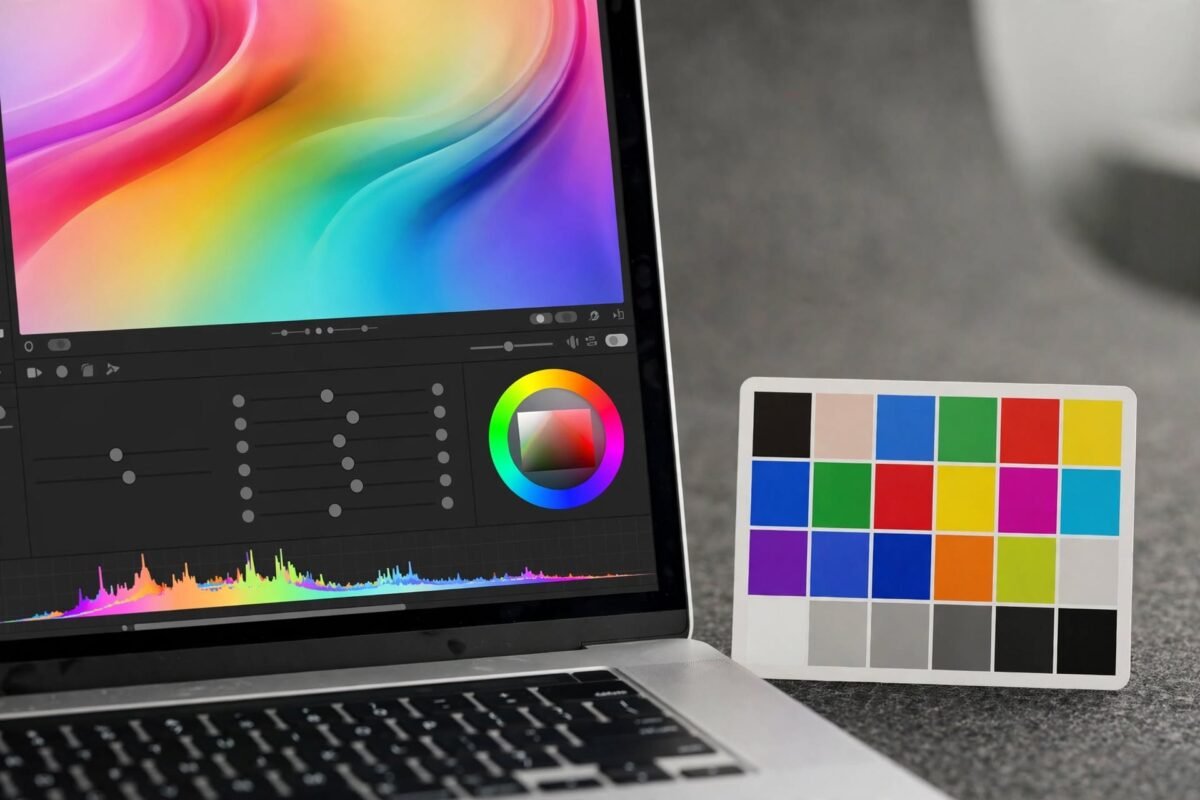
For Creators: Color Accuracy Comes First
If you edit photos, grade video, or design graphics, color accuracy matters more than any other display spec. It decides whether the colors you see are the colors your audience sees.
Look for these:
- sRGB coverage of 100%. This is the standard for web content, social media, and most video. Treat 100% as the baseline for any serious creative work.
- Wider color support (DCI-P3 or Adobe RGB). Video editors benefit from DCI-P3, and photographers or print designers often prefer Adobe RGB. If you only publish online, strong sRGB coverage is enough.
- Factory calibration. Some screens are tested and tuned before they ship. It’s a nice bonus, but not essential if you’re willing to calibrate with a tool later.
- Panel type. IPS panels offer reliable colors and wide viewing angles. OLED panels deliver deep blacks and vivid colors, though they can be pricier and aren’t always the best fit for every workflow.
A quick warning: “vibrant” and “vivid” in marketing copy don’t mean accurate. Always look for the actual percentages in the spec sheet.
Screen Size and Resolution: A Quick Guide
- 13 to 14 inches: Best for portability. Fine for photo editing and writing, but tight for video timelines.
- 15 to 16 inches: The balanced choice for most creators. Enough space to work comfortably without being too heavy.
- 17 inches and up: Great for detailed work at a desk, but bulky to carry around.
For resolution, Full HD is workable on a budget, QHD is a sweet spot for sharpness and performance, and 4K is ideal if you edit 4K footage or want crisp detail, though it uses more battery.
Brightness Matters Too
Aim for at least 300 nits for indoor use, and 400 or more if you work near windows or outdoors. A dim screen makes colors harder to judge and strains your eyes.
Graphics Card (GPU): Do Content Creators Need One?
Short answer: Yes, for most creators, a dedicated GPU is worth it. If you edit video, work with motion graphics, or stream, it will save you hours over the life of your laptop.
The exception is a smaller group of creators whose work is light enough that built-in graphics will do the job. We’ll cover who they are below.
First, let’s clear up what a GPU actually does.
What a GPU Does
The GPU (graphics processing unit) handles anything visual: drawing your timeline preview, applying effects and color grades, rendering transitions, and speeding up exports.
Many creative apps hand these tasks to the GPU, so the processor can focus on everything else. A stronger GPU means smoother playback, faster effects, and shorter waits.
Integrated vs Dedicated GPU: The Simple Difference
Integrated GPU: This is a graphics chip built into the processor itself. It shares memory and power with the rest of the system.
Think of it as a shared kitchen where the cook (CPU) and the helper (GPU) fight over the same counter space. It’s efficient, keeps the laptop thin and cool, and sips battery. But it has limited muscle for heavy visual work.
Dedicated GPU: This is a separate chip with its own memory (called VRAM), built to handle graphics on its own. It’s like giving the helper their own kitchen.
Heavy tasks no longer compete with everything else, so your laptop stays responsive even under load. The trade-off is a higher price, more heat, a heavier laptop, and shorter battery life.
Want to Learn More – Integrated vs Dedicated GPU: Which One Do You Really Need?
Who Can Skip a Dedicated GPU?
An integrated GPU is enough if you mostly:
- Write, blog, or do social media management
- Edit photos with light adjustments
- Record and edit podcasts or audio
- Cut simple 1080p videos with basic transitions and few effects
- Design simple graphics and presentations
Modern integrated graphics have improved a lot, and for these tasks they’re perfectly capable. If you’re a beginner or working on a budget, starting here is a smart, practical choice.
Who Needs a Dedicated GPU?
You should get one if you:
- Edit 4K video, especially with effects, color grading, or multiple layers
- Work with motion graphics or animation
- Do 3D modeling or rendering
- Stream and record at the same time, particularly gameplay
- Use AI-powered tools in your editing software, such as noise reduction, auto-masking, or upscaling
In these cases, a dedicated GPU is the difference between a smooth timeline and a stuttering one.
How Much GPU Do You Need?
Here’s a simple way to think about it, in line with the table earlier:
- Entry-level (4GB VRAM): Handles 1080p editing, basic effects, and light streaming.
- Mid-range (8GB VRAM): The sweet spot for 4K editing, color grading, and motion graphics. Most working creators land here.
- High-end (16GB+ VRAM): Only necessary for heavy 3D work, complex visual effects, or 8K footage. For most people, it’s overkill.
When you compare options, look at the VRAM amount and the type of GPU rather than marketing names like “gaming” or “creator edition.”
Also check that your editing software supports GPU acceleration, since some apps benefit far more than others.
A Note on Laptop Design
A laptop with a dedicated GPU needs good cooling. If the cooling is weak, the GPU slows itself down to avoid overheating, and you lose the performance you paid for. We’ll cover this more in the cooling section.
Battery, Weight, and Build Quality
A laptop can have the best specs in the world and still be a poor fit if it dies at the coffee shop or wrecks your shoulder on the commute. If you create on the move, shoot on location, or just move between desk and couch, these three factors matter more than most spec sheets let on.

Battery Life: Claims vs Reality
Battery numbers on product pages usually come from light, ideal tests: low screen brightness, a looping video, and no background apps. Your day looks nothing like that.
Here’s a rough guide to what to expect in real use:
- Light work (writing, browsing, email): Around 60 to 70% of the advertised hours.
- Moderate creative work (photo editing, audio, design): Roughly 40 to 50% of the claim.
- Heavy work (video editing, rendering, streaming): Often 25 to 35%, and sometimes much less with a dedicated GPU running.
So a laptop advertised at 15 hours might give you 3 to 4 hours of video editing. That’s normal, not a defect.
What to do about it:
- Look for independent testing. Real-world reviews that run web browsing or video loops are more honest than the manufacturer’s number.
- Check the battery capacity. It’s listed in watt-hours (Wh). Higher is generally better, and 70Wh or more is solid for a creator laptop.
- Expect to plug in for heavy work. Many laptops also reduce performance on battery to save power, so for exports and renders, plug in.
- Check charging options. USB-C charging is a big convenience because you can top up with a power bank or a shared charger. Fast charging that reaches 50% in under an hour is a great bonus.
Also Read: Battery Life in Gaming Laptops: Myths, Facts & Real Numbers
Weight: How Much Is Too Much?
Weight is easy to ignore in a store and impossible to ignore after a week of carrying it. A rough guide:
- Under 1.4 kg (about 3 lbs): Very portable. Usually means a smaller screen and less powerful hardware.
- 1.4 to 2 kg (3 to 4.5 lbs): The sweet spot for most creators, balancing power and portability.
- 2 to 2.5 kg (4.5 to 5.5 lbs): Manageable if you travel occasionally, but you’ll feel it daily.
- Above 2.5 kg (5.5 lbs): Best treated as a desk machine.
Remember to count the charger. A powerful laptop can come with a brick that adds half a kilo or more to your bag. If you commute or travel often, a compact USB-C charger can be a smart extra.
There’s always a trade-off: lighter laptops usually mean less cooling capacity and less graphics power. Decide how often you actually carry it before choosing.
Build Quality: Why It Matters More Than You Think
A laptop that travels with you takes a beating: bumps, bag pressure, hot cars, and constant opening and closing. Build quality decides whether it lasts two years or five.
What to look for:
- Sturdy materials. Aluminum or magnesium alloy bodies hold up better than thin plastic. Good plastic can still be durable, but avoid anything that flexes when you press on the keyboard deck.
- A solid hinge. It should open smoothly, hold its position, and not wobble when you type or tap the screen.
- A good keyboard and trackpad. If you write scripts, edit, or answer comments all day, comfort counts. Look for decent key travel and a large, responsive trackpad.
- Port placement and quality. Ports should feel firm, not loose. Spread-out ports also make it easier to plug in a charger and accessories at once.
- Repairability. Check whether the battery and storage can be replaced. A laptop you can fix is a laptop you can keep longer.
- Warranty. A longer warranty is a practical sign of a manufacturer’s confidence, and accidental damage cover is worth considering if you travel often.
Keyboard, Ports, Webcam, and Speakers
Nobody buys a laptop because of its hinge or its speaker grille. But these are the features you touch, hear, and rely on all day, and when they’re bad, you notice every single time.
A mushy keyboard slows your writing, a missing port forces you to carry a dongle, and a grainy webcam makes you look unprofessional in every client call. Here’s what to check before you buy.
Keyboard: Where Your Hands Live
If you write scripts, captions, emails, or edit with keyboard shortcuts, you’ll spend more time on the keyboard than on any other part of the laptop.
- Key travel and feel. Look for keys that move down a satisfying distance and bounce back crisply. Shallow, mushy keys get tiring fast. Reviews usually describe the typing feel in plain terms, so read them.
- Layout. A full-size layout with a number pad is handy for spreadsheets and some editing shortcuts, but it usually means a larger laptop. Smaller laptops often skip it, which is fine for most people.
- Backlighting. Essential if you ever work in dim rooms, on trains, or late at night.
- Trackpad quality. A large, smooth, accurate trackpad makes a big difference when you’re away from a mouse. It should register clicks evenly across the whole surface.
If you edit video or audio regularly, consider carrying a small external mouse anyway. It’s far more precise than any trackpad.
Also Read: How To Clean And Maintain A Laptop Like A Pro For Peak Performance?
Ports: What You’ll Be Glad You Have

Ports are the feature people regret most after buying. Here’s a practical checklist for creators:
- USB-C with Thunderbolt or USB4. This is the all-rounder. It handles fast external drives, displays, charging, and docks over a single cable.
- USB-A. Still useful for older mics, flash drives, and accessories. Having at least one saves you from carrying adapters.
- HDMI. Great for connecting to an external monitor, TV, or projector without a dongle.
- SD card reader. A big time-saver for photographers and videographers. Pulling footage straight from a camera card is faster than hunting for a reader.
- Headphone/mic jack. Handy for wired headphones and some microphones, and it avoids Bluetooth audio delay when monitoring sound.
Also check how many ports there are in total, and whether the laptop can charge through USB-C. If it only has two or three ports, plan on using a hub or dock. That’s perfectly workable, but factor it into your budget and your bag.
Webcam: Your Face in Every Meeting
Even if you create content on your own terms, you’ll be on calls with clients, collaborators, and brands. A poor webcam makes you look worse than you do.
- 1080p is the sensible baseline. 720p cameras often look soft and grainy, especially in normal indoor lighting.
- Low-light performance. This matters more than resolution. Laptop webcams are small, so they struggle in dim rooms. Reviews with sample footage are the best guide.
- A privacy shutter. A physical cover gives peace of mind and is a small but welcome feature.
Be realistic, though. Even a good laptop webcam won’t match a dedicated external camera. If you stream or record talking-head videos, plan on using a separate camera or webcam, and treat the built-in one as a backup for calls.
Speakers: Helpful, But Not for Mixing
Good built-in speakers are great for casual playback, quick previews, and watching reference videos.
They’re not accurate enough for judging audio quality, though. Laptop speakers are too small to reproduce deep bass or reveal fine detail.
- Look for clear voices and balanced sound with no obvious distortion at higher volumes.
- Check for decent volume without rattling the chassis.
- Don’t rely on them for audio work. For editing, mixing, or checking your sound, use closed-back headphones or studio monitors.
Speakers shouldn’t be the deciding factor in your purchase. A solid pair of headphones will do far more for your work than any built-in speaker system.
How to Prioritize Features as a Content Creator
There is no single “best” laptop spec for every creator. A video editor and a podcaster can both be “content creators” and need almost opposite things.
So, instead of one list, here is a priority order for each type of creator. Find the one that sounds like you, and spend your budget from the top down.
How to Use These Lists
The feature at the top is where your money should go first. The ones at the bottom are nice to have, and it’s fine to settle for “good enough” there. If your budget is tight, never downgrade your top two just to upgrade your bottom two.
Video Editors and YouTubers
GPU > CPU > RAM > Storage speed > Cooling > Display > Ports > Battery
Video is the most demanding creative work you can do on a laptop. The GPU speeds up previews, effects, and exports, while the CPU handles the heavy lifting in the background.
RAM and fast NVMe storage keep your timeline smooth. Cooling sits high because a hot laptop throttles, and you lose the performance you paid for. Battery is last because heavy editing means plugging in anyway.
Read: Top 5 Best Laptops For Video Editing In India – Power, Performance & Precision
Photographers
Display > RAM > Storage > CPU > Ports > GPU > Battery
You can’t edit what you can’t see accurately, so color accuracy comes first. Large RAW files need plenty of memory and storage space, and an SD card reader saves time after every shoot. A dedicated GPU helps with some editing tools, but it’s less critical than it is for video.
Graphic Designers and Illustrators
Display > RAM > CPU > GPU > Storage > Weight > Battery
Like photographers, designers live and die by color accuracy. Layered files eat memory, so RAM matters a lot. A mid-range GPU helps with large canvases and effects. If you draw, check for pen or touch support too.
Read Also: 6 Best Laptops For Graphic Designers In India
Streamers
GPU > CPU > Cooling > RAM > Ports > Webcam > Display > Battery
Streaming means running a game or app, encoding video, and managing overlays and chat at the same time. That’s a lot of load for the GPU and CPU, and it creates a lot of heat. Good ports matter for external mics, cameras, and capture gear.
Podcasters, Writers, and Social Media Managers
Battery > Weight > Keyboard > RAM > Storage > CPU > GPU
If your work is mostly writing, audio, and light editing, you don’t need a powerhouse. Comfort and portability come first: a good keyboard, a light body, and a battery that lasts through a working session. Integrated graphics are fine here, so put your savings toward 16GB of RAM and a fast SSD.
Beginners on a Budget
RAM > Storage speed > Display > CPU > Weight > GPU
If you’re just starting out and don’t yet know what you’ll specialize in, get the basics right. Aim for 16GB of RAM and a fast 512GB NVMe drive, and choose a screen with solid sRGB coverage.
A recent 6-core processor is plenty. You can skip the dedicated GPU for now and add external storage as you grow. These choices keep you flexible, so you won’t be stuck if your interests change.
Quick Reference Table
| Creator Type | Top 3 Priorities | Safe to Compromise On |
|---|---|---|
| Video editor | GPU, CPU, RAM | Battery, speakers |
| Photographer | Display, RAM, Storage | GPU, webcam |
| Designer | Display, RAM, CPU | Battery, speakers |
| Streamer | GPU, CPU, Cooling | Display size, speakers |
| Podcaster/Writer | Battery, Weight, Keyboard | GPU, CPU cores |
| Beginner | RAM, Storage, Display | GPU, extra ports |
Three Rules That Apply to Everyone
- Fix what you can’t upgrade later. Soldered RAM, the display, and the GPU are locked in at purchase. External storage and accessories can be added anytime, so spend on the permanent parts first.
- Buy for the work you’ll do in 12 months, not today. If you’re planning to move from photos to video, buy with that in mind.
- Balance beats extremes. A laptop with a powerful GPU and 8GB of RAM will bottleneck itself. Aim for a balanced machine rather than one standout spec.
FAQs About Laptop Features for Content Creators
How much RAM do I need for video editing on a laptop?
For 1080p editing, 16GB of RAM works well. For 4K footage, multiple layers, or editing while exporting in the background, 32GB is the smoother, more future-proof choice for working creators.
Do content creators need a dedicated graphics card in a laptop?
Yes, if you edit 4K video, create motion graphics, or stream. A dedicated GPU speeds up previews and exports. For writing, audio, and light photo editing, integrated graphics are usually enough.
What is the best screen resolution for a content creator laptop?
Full HD works on a budget, but QHD offers the best balance of sharpness and battery life. Choose 4K if you edit 4K footage, and always prioritize 100% sRGB color coverage.
Is 512GB storage enough for a content creator laptop?
It’s workable if it’s a fast NVMe drive and you archive regularly. For 4K video or several active projects, choose 1TB and move finished work to an external drive.
How many CPU cores do I need for content creation?
Six recent cores handle 1080p editing and everyday creative work. Working creators editing 4K or streaming should aim for 8 to 12 cores. Sixteen or more is rarely necessary.
Final Takeaway
The ideal setup for most content creators is a balanced machine rather than one with a single standout spec.
Aim for a recent 8 to 12 core processor, 16GB of RAM as the floor (32GB if you edit video or design heavily), a fast 1TB NVMe drive, and a dedicated GPU if video, motion graphics, or streaming is your focus.
Add a display with 100% sRGB coverage, a build you’ll enjoy carrying, and the ports you’d otherwise need adapters for. That combination covers most workflows without paying for power you’ll never use.
Remember, the essential laptop features for content creators are the ones that match your actual workload, not the biggest numbers on a spec sheet. Name your main task, spend on your top three priorities, and accept “good enough” on the rest.
Want to go deeper? Read Essential Laptop Features for Students: What to Look For? and 10 Best Laptops For Writers and Bloggers in India for more guidance.

Kanha is a electronics engineer, tech enthusiast, and writer at technicalstudies.in. His experience in tech, coupled with excellent writing skills, makes the text easy to understand and helps the reader make the correct decision. Outside of writing, Kanha is passionate about exploring new gadgets and gaming.